Use AI flow creation to create, edit, and debug flows from plain-language or voice instructions.
AI flow creation lets you create, edit, and debug flows by describing what you want in plain language or by speaking your instructions. You don’t need to know the flow syntax to get started — the AI writes and updates the code for you.If you’d prefer to write flows manually, see Create flows in the IDE.
Two entry points on the Flows tab hand a new flow to the agent:
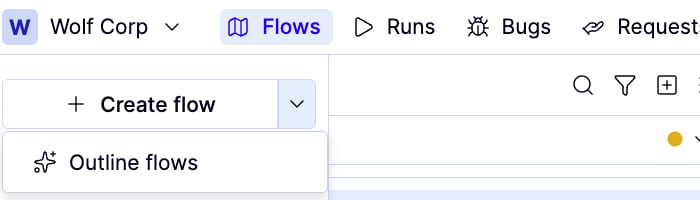
Create flow — the button above the flows list
Create flow — the large purple button on the All flows page
Both open the AI chat panel in flow mode. Working with the agent one prompt at a time is guided creation.The icon next to Create flow opens a drawer with Outline flows, which starts an outlining session across a whole application at once — see Create a coverage outline.
Type a plain-language description of what you want the flow to do into the chat box and hit enter. For example: “Log in with a valid email and password and assert that the dashboard loads.”
Select Autonomously complete this test to have the AI generate Playwright code for the flow automatically. While it runs, you can multitask in other flow tabs.
When a flow fails, click Fix with AI in the banner at the top of the editor. Describe the problem or let the AI interpret the error automatically.For manual debugging, see Debug tests & flows.